
Download Windows 8 Light Windows Theme – Free Light Theme for Windows 11
Overview
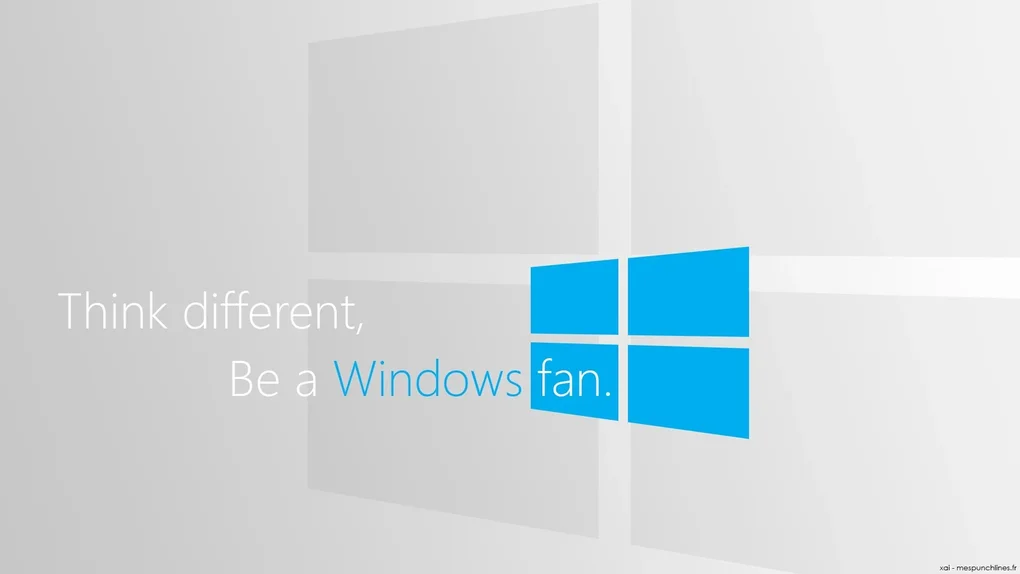
Windows 8 Light Windows Theme is a free, lightweight visual makeover created by WinThemePack for modern Windows installations. Although it bears the “Windows 8” moniker, the theme has been updated to run flawlessly on Windows 11 and later, delivering a clean, bright aesthetic that mimics the original Windows 8 interface while taking advantage of current system capabilities. The software belongs to the “Themes” category and is distributed in English only.
Released on Softonic on May 27th 2024, version 1.0 provides a simple way to switch your desktop, taskbar, and system colors to a crisp, high‑contrast light palette without the need for third‑party tweaking tools. Because it is a stand‑alone installer, the theme does not require any additional runtime components, making it a secure and low‑impact solution for users who want a fresh look without compromising performance. Whether you are a power user seeking a minimalist workspace or a casual user tired of the default dark tones, Windows 8 Light Windows Theme offers a quick, one‑click transformation that respects the native Windows look‑and‑feel.
Key Features
- Full‑system light color scheme that aligns with the classic Windows 8 design language.
- Optimized for Windows 11 and later, ensuring compatibility with modern UI elements such as centered taskbar icons and rounded corners.
- One‑click installation with automatic registry updates – no manual editing required.
- Low CPU and memory footprint; the theme runs silently in the background.
- Secure installation package signed by WinThemePack, minimizing the risk of malware.
- Supports high‑DPI displays, preserving crispness on 4K monitors.
- Free to download and use, with optional donations to support ongoing development.
- Easy revert to the default Windows theme via a built‑in “Restore Original Settings” button.
The feature set is deliberately focused on visual consistency rather than adding extra utilities. By targeting the core elements of the Windows UI—window borders, start menu tiles, taskbar, and system dialogs—the theme provides a cohesive look that feels both nostalgic and contemporary. Because it does not bundle third‑party software, users can trust that the theme will not introduce unwanted bloatware or interfere with system updates. Moreover, the theme respects Windows’ built‑in accessibility options, meaning high‑contrast modes and text scaling remain functional after installation.
Installation & Usage Instructions
Getting Windows 8 Light Windows Theme up and running is straightforward, even for users with limited technical experience. Follow these steps to ensure a smooth setup:
- Download the installer: Click the “Download” button on the official Softonic page or the WinThemePack website. The file is typically named
Win8LightTheme_v1.0.exeand is less than 5 MB. - Verify the signature: Right‑click the file, select “Properties,” then the “Digital Signatures” tab. Ensure the signer is “WinThemePack” to confirm authenticity.
- Run as administrator: Double‑click the installer and accept the UAC prompt. Administrative rights are required to modify system registry keys safely.
- Choose installation options: The wizard offers a default “Full Install” (recommended) or “Custom Install” where you can exclude specific UI elements if you prefer a hybrid look.
- Complete the installation: Click “Install” and wait for the progress bar. The process usually takes under a minute.
- Apply the theme: After the installer finishes, a “Apply Theme” button appears. Click it, then log out and back in, or simply restart Explorer (
Ctrl + Shift + Esc → Processes → explorer.exe → Restart) to see the changes. - Reverting changes: If you wish to return to the default Windows appearance, open the “Windows 8 Light Theme” folder in the Start menu and select “Restore Original Settings.” This will safely undo all registry modifications.
For power users, the theme also includes a hidden command‑line switch (/safe) that installs the theme without altering the start menu layout, useful for testing in a virtual machine. Once installed, you can personalize accent colors via Windows Settings → Personalization → Colors, while the overall light palette remains intact. The theme does not interfere with Windows Update, so future OS patches will not overwrite the visual changes unless you explicitly choose to reset the theme.
Compatibility, Pros & Cons
Windows 8 Light Windows Theme is officially compatible with Windows 11 (version 22000 and later) and any future builds that maintain the core theme engine. The installer detects unsupported OS versions and will abort with a clear message, preventing accidental corruption on older Windows editions such as Windows 7 or Windows 8.1.
Pros
- Free and secure: No hidden fees, and the installer is digitally signed.
- Lightweight: Minimal impact on system resources, ideal for older hardware.
- One‑click revert: Easy restoration to the default Windows look.
- High‑DPI ready: Crisp visuals on 4K and ultrawide monitors.
- Consistent UI: Uniform light theme across all system components.
Cons
- Only available in English, limiting non‑English speakers.
- No built‑in dark mode toggle; users must switch back to the default theme for a dark experience.
- Lacks advanced customization options (e.g., granular color control).
- Designed primarily for Windows 11; older Windows versions are not supported.
- Occasional visual glitches may appear after major Windows updates, requiring a reinstall.
Frequently Asked Questions
Is Windows 8 Light Windows Theme really free?
Yes, the theme is completely free to download and use. There are no hidden charges, and the developer only asks for optional donations to support future updates.
Can I install this theme on Windows 10?
The official installer only supports Windows 11 and later. While some users have reported partial functionality on Windows 10, it is not guaranteed and may cause visual inconsistencies.
Will the theme affect Windows Update or system stability?
No. The theme modifies only visual registry keys and does not interfere with core system files. Windows Update will continue to function normally, and you can safely revert the theme at any time.
How do I revert to the default Windows theme if I don’t like the light look?
Open the “Windows 8 Light Theme” folder in the Start menu and select “Restore Original Settings.” This will undo all registry changes and return your system to the default theme.
Is the installer safe from viruses and malware?
Yes. The executable is digitally signed by WinThemePack, and the download source (Softonic or the official website) uses HTTPS. Always verify the digital signature before installation.
Conclusion – Give Windows 8 Light Windows Theme a Try
If you’re looking for a quick, free way to brighten up your Windows 11 desktop while keeping the classic Windows 8 vibe, Windows 8 Light Windows Theme is a solid option. Its lightweight design, secure installation process, and easy revert button make it suitable for both novices and seasoned Windows enthusiasts. Although it lacks deep customization and is limited to English, the overall user experience is smooth and visually appealing. Download the theme today, apply the fresh light palette, and enjoy a cleaner workspace without compromising performance. Click the download button now and transform your PC in seconds!







